The Grid View and Report Interface in EQuIS Professional feature toolbars with options for viewing and exporting data. These options vary based on the type of report or table users are viewing.
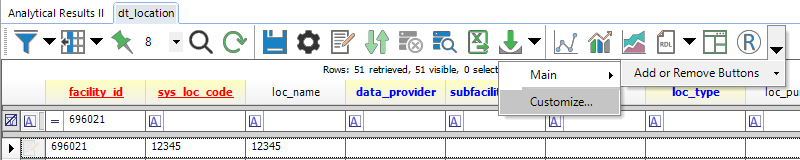
Customize toolbars as shown below. Any customizations in the Options tab apply to both the grid and report toolbars.
Customize Icon Size
The icons on the toolbar are set to Large by default. To make all of the icons on the toolbar small:
1.Right-click on the toolbar and click Customize.
2.Navigate to the Options tab.
3.Uncheck "Large Icons on Toolbars".
4.Uncheck "Large Icons on Menus".
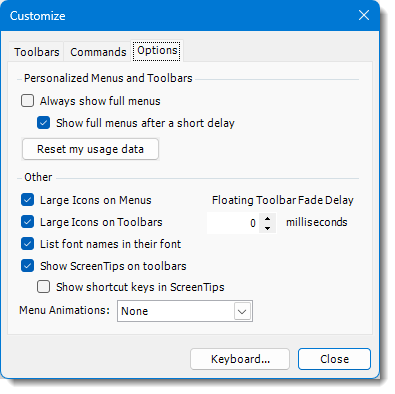
There are also other options for customization, such as reordering buttons.
Removing Customization
After opening the customization window, a .xml settings file is created:
%appdata%\EarthSoft\EarthSoft.Reports.Toolbar.[Culture code*].7.0.0.0.xml
* Culture code refers to the language/culture settings used by the machine's Windows/EQuIS Professional (e.g., "en-US"). See Using EQuIS with Different Regional Settings or Languages for more information on this setting.