Parameters can be added to an action level using the Action Level Parameters tab in the Action Levels form.
The Available Parameters pane is populated from the RT_ANALYTE table and displays the parameters that can be added to an action level. The Available Parameters pane can be sorted by clicking on the header of a column (e.g., CAS_RN, CHEMICAL_NAME) to sort data by that column. A triangle will appear that indicates an ascending (pointing up) or descending (pointing down) sort.
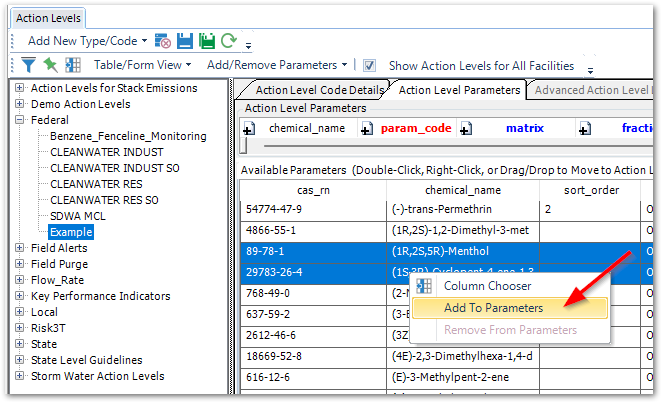
To add parameters to an action level, select one or multiple analytes from the Available Parameters pane. Right-click anywhere in this pane and select Add to Parameters. All the highlighted parameters will be added to the Action Level Parameters pane.
Parameters can also be added by doing the following:
•Drag and drop from the Available Parameters pane to the Action Level Parameters pane.
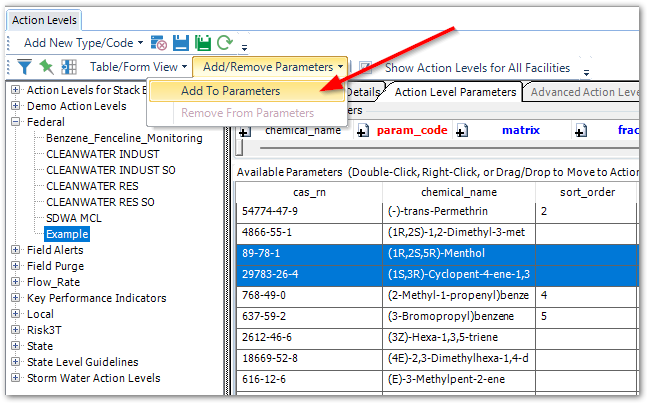
•Select Add To Parameters from the Add/Remove Parameters drop-down on the toolbar.
Once Parameters have been added, select Save or click the Save button on the toolbar.
If an Action Level Code already exists with the same or similar list of Parameters, it may be quicker to Copy Action Levels.
Edit Action Level Parameter Values
Once parameters have been added to the action level, the parameter values can be added.
1.Select the parameter to edit.
2.Press the Tab key on the keyboard to move from cell to cell, or click the mouse on the cell to edit.
3.Enter the action level values and a unit.
The only field required in the Parameters pane is the PARAM_CODE; however, to make the action level useful, the ACTION_LEVEL and UNIT fields must be populated (remaining fields may be useful for certain reporting criteria). Click Save  on the toolbar once action level values have been edited.
Available Action Level Parameters
The Available Parameters pane is populated from the RT_ANALYTE table. Add new parameters to the available parameters by editing the RT_ANALYTE table.
Notes: •The CHEMICAL_NAME column from the RT_ANALYTE table is displayed in the Action Level Parameters and Available Parameters Lists so that the filter can be used to search by CHEMICAL_NAME. •The RT_ANALYTE.STATUS_FLAG must be set to "A" for the chemical to be displayed in the Available Parameters list. |
Remove Parameters from Action Level
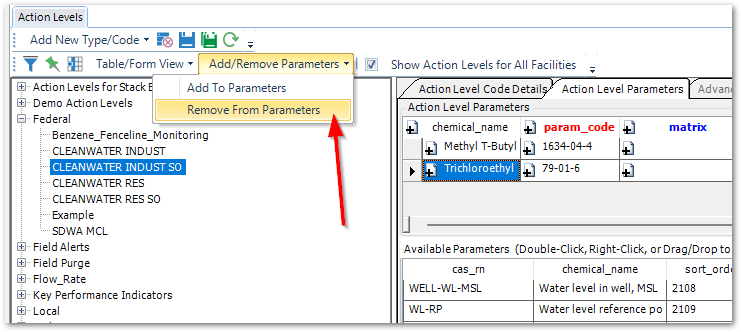
To remove a parameter from an action level, first select the Action Level Code from the Action Level Type pane. Next, go to the Action Level Parameters tab and select one or more parameters to be removed from the Parameters pane by clicking the arrow to the left of the parameter. With the parameters highlighted, do one of the following:
•Click Delete on the keyboard.
•Right-click and select Remove from Parameters.
•Select Remove From Parameters from the Add/Remove Parameters drop-down.